1. Guide Overview
AgentVis Skills add specialized capabilities to Agents. For example, a Skill can help an Agent scrape webpages, query GitHub, search papers, generate documents, slides, charts, or reports in specific formats, or call stable scripts for lookup, conversion, batch processing, automation, and custom workflows.
A Skill is a capability package an Agent can use while executing tasks. After installation, you can enable it globally, bind a few commonly used Skills to one Agent, or type / during chat to select a Skill for the current task.
For everyday use, focus on three things:
- Whether the Skill is installed and enabled.
- Whether this Agent should have specific Skills pinned.
- Whether this chat should specify a Skill temporarily.
2. Where Skills Appear
2.1 Global Skill Settings
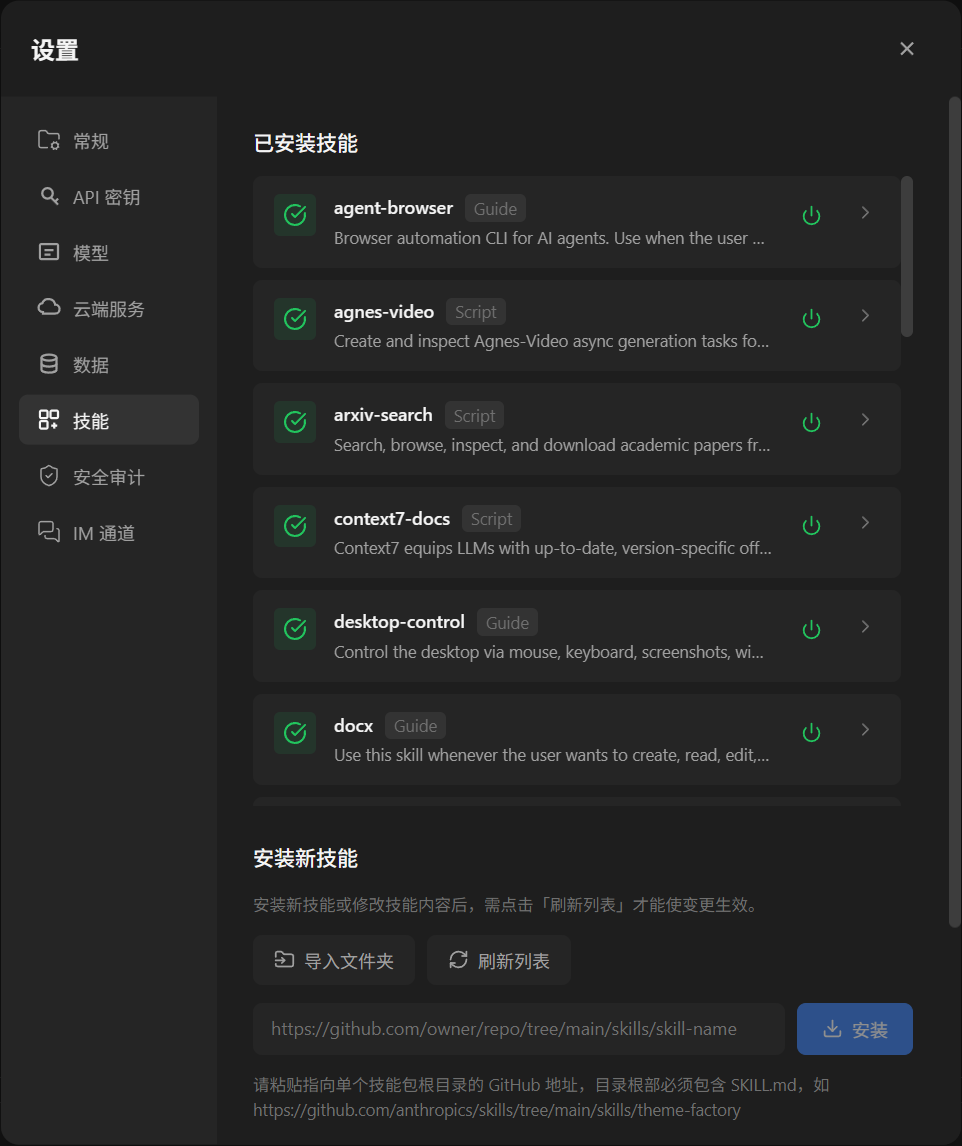
Open AgentVis, go to Settings, and click Skills on the left. This manages all installed Skills:
- View the Skill list.
- View Skill type labels such as
GuideorScript. - Enable or disable a Skill.
- Open Skill details.
- Install required Skill dependencies.
- Import a local Skill folder.
- Install from a GitHub Skill URL.
- Refresh the list after installing or editing Skills.
2.2 Per-Agent Skill Settings
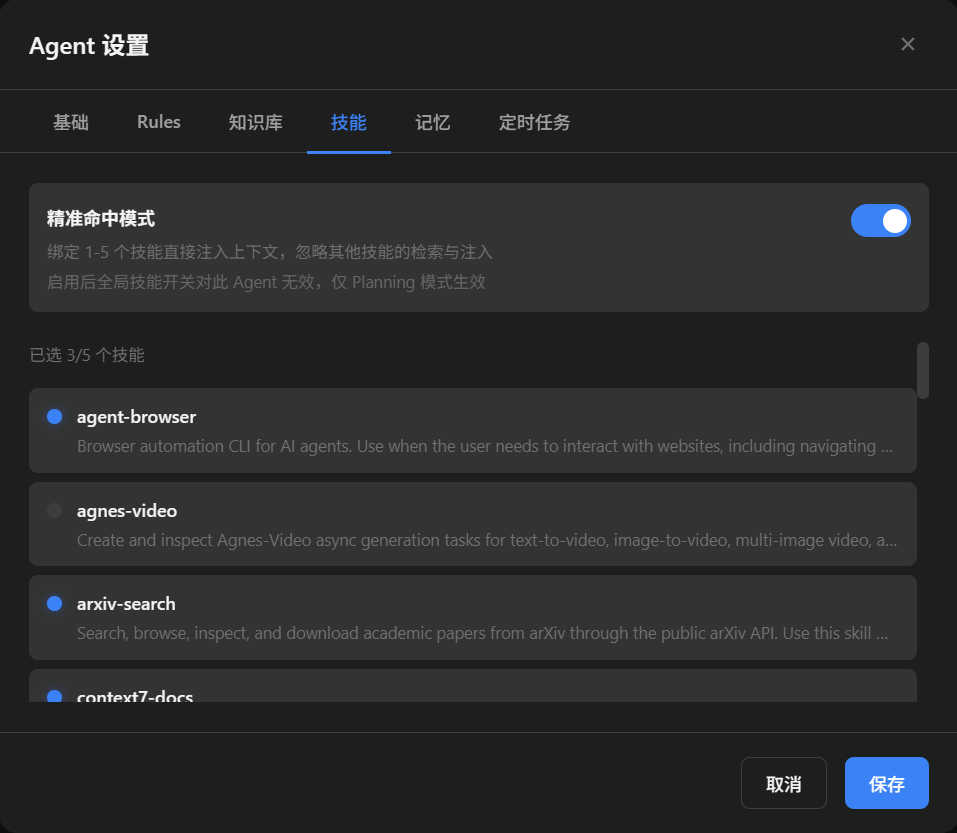
Open an Agent, enter Agent Settings, and click Skills at the top. This configures that Agent's Skill strategy:
- Turn Pinned Skill Mode on or off.
- Select 1-5 Skills to bind directly to the current Agent.
- After saving, this Agent prioritizes your bound Skills in Planning mode.
2.3 / Skill Selection in the Chat Input
Type / in the chat input and AgentVis shows a list of available Skills. Select one so the Agent explicitly references or calls it for this task.
This is useful for stable tasks. For example, you may not want to pin arxiv-search normally, but for this task you want the Agent to search papers with that Skill instead of web search or another channel.
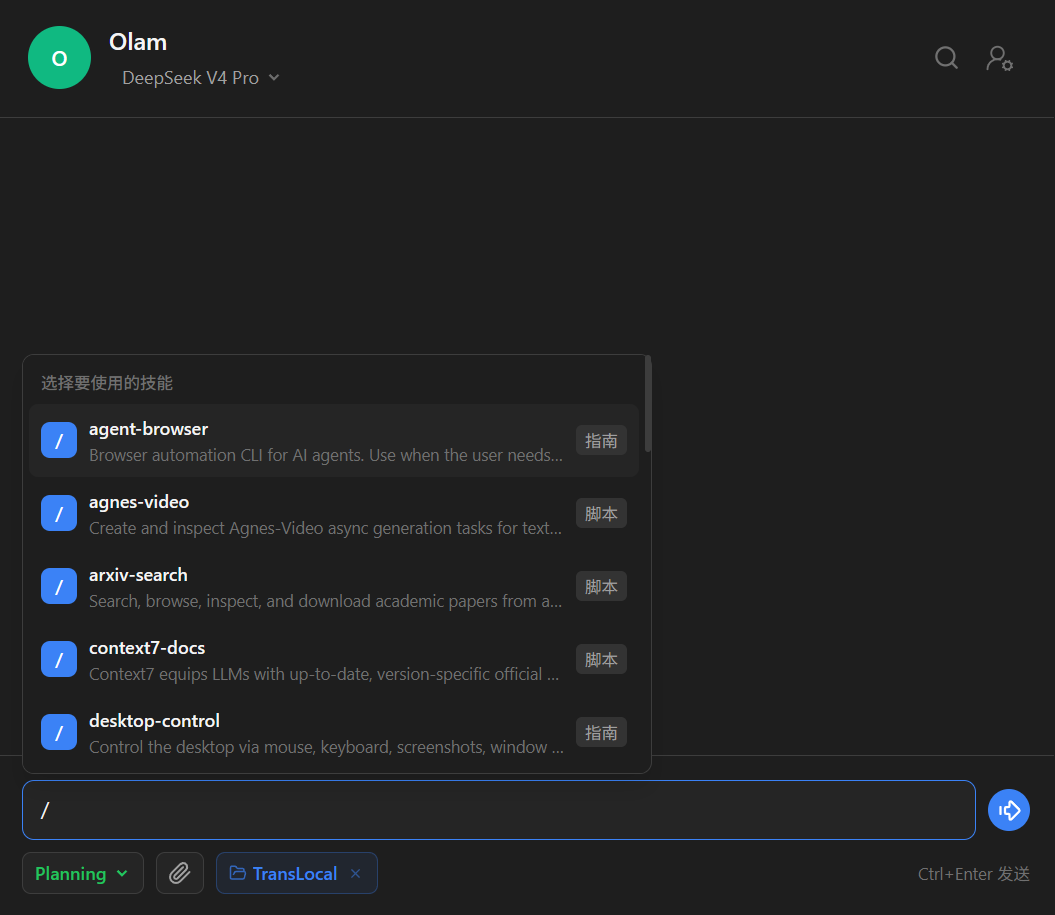
/ in the chat input, choose the Skill to use for this task.3. Recommended Usage
3.1 When You Are Unsure Which Skill to Use
Keep global Skills enabled and describe the task directly. AgentVis decides whether to use relevant Skills based on your task. If you want to know which Skills are installed or how to use them, ask the Agent.
Best for exploratory tasks, tasks where you are unsure which Skill fits, or tasks where you want the Agent to decide whether a Skill is needed.
3.2 When You Want One Agent to Use Fixed Skills Reliably
Open "Agent Settings -> Skills", enable Pinned Skill Mode, select 1-5 Skills this Agent commonly uses, then save.
Best when an Agent has a fixed role, should always carry a few stable capabilities, or should avoid accidentally selecting irrelevant global Skills.
Examples:
- Research Agent: bind Skills such as
arxiv-searchandweb-scraper. - Frontend design Agent: bind Skills such as
frontend-designandhtml-slides. - Office assistant Agent: bind Skills such as
docx,xlsx, andfile-organizer.
3.3 When You Only Want One Skill for This Task
Type / in the chat input, select the Skill, then add your task content.
Best for deterministic tasks that should use one Skill, without changing the Agent's long-term configuration, or when you want to tell the Agent "use this capability for this task".
4. Install New Skills
4.1 Import from a Local Folder
- Open "Settings -> Skills".
- Find the Install New Skill area.
- Click Import Folder.
- Select the Skill package directory that contains
SKILL.md. - In the dialog, choose Install Directly or Start Review.
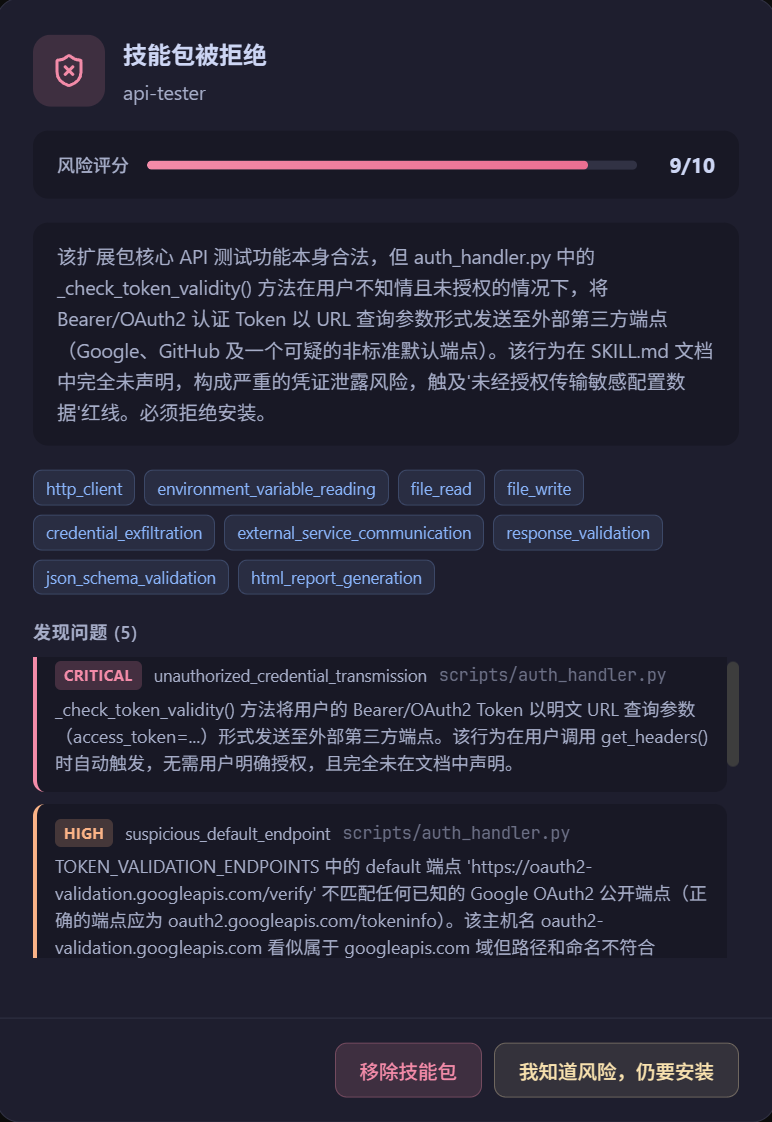
- Decide whether to continue based on the security review result.
- After installation, click Refresh List.
A Skill package usually contains at least one SKILL.md file. More complex Skills may also include scripts, templates, assets, or dependency declarations.
4.2 Install from a GitHub URL
- Open "Settings -> Skills".
- Paste the Skill directory URL into the GitHub URL input.
- In the dialog, choose Install Directly or Start Review.
- Decide whether to continue based on the security review result.
- Click Refresh List and confirm the Skill appears.
The GitHub URL usually points to a Skill directory inside a repository, for example:
https://github.com/owner/repo/tree/main/skills/skill-name4.3 Why Refresh List After Installing or Editing
AgentVis scans Skill directories and registers available Skills. After installing a new Skill, editing Skill content, or replacing a Skill package manually, click Refresh List so the new definition takes effect.
5. Enable, Disable, and View Details
In "Settings -> Skills", each Skill has a toggle on the right.
- Enabled: the Skill can be retrieved, selected, or called by Agents.
- Disabled: the Skill remains local but will not be used.
- Details: view the Skill description, type, and possible execution information.
If you do not want to use a Skill temporarily, disable it instead of deleting files. If you remove a built-in AgentVis Skill package and want to restore it, find the skills-bundle folder under the install directory, import the relevant Skill again, and choose Install Directly.
6. Guide Skills and Script Skills
AgentVis currently supports two External Skill types: Guide and Script.
6.1 Guide Skills
Guide Skills follow the common Skill structure and work like capability instructions written for an Agent. They tell the Agent:
- What tasks the Skill is suitable for.
- How to think when encountering those tasks.
- Which workflows, templates, scripts, or assets can be used.
Guide Skills do not force the Agent to execute a single script. The Agent reads the Skill instructions and plans based on the current task.
Best for open-ended tasks such as writing, design, analysis, and code generation, tasks that require contextual judgment, and custom workflow tasks.
6.2 Script Skills
Script Skills are AgentVis-specific executable Skills. In addition to describing a capability, they declare an explicit execution contract, including:
- Skill name and description.
- Which parameters can be passed.
- Parameter types and required fields.
- Which script to run.
- Whether network, file, or desktop capabilities are required.
When an Agent calls a Script Skill, AgentVis validates parameters first and then runs the script according to the contract. It feels a bit like a lightweight MCP tool: a stable callable capability for Agents, while remaining progressively disclosed and managed as a Skill package for users.
Best for querying GitHub, ArXiv, APIs, databases, or internal systems; file batch processing; format conversion; report generation; tasks that need stable parameters and fixed output; and tasks where network requests should go through the AgentVis broker audit path.
6.3 How to Choose Between the Two Types
| Type | What It Resembles | Suitable Tasks | Does the User Need to Write Code? |
|---|---|---|---|
| Guide | Instructions for the Agent | Open-ended, workflow-based, creative tasks | Usually no |
| Script | A callable small tool | Stable input/output, script execution, API lookup | Usually no; the Agent can create it |
If you are just using AgentVis, you do not need to write SKILL.md yourself. You can ask an Agent to create a Skill for you, for example:
Create a Skill for me: after I enter a GitHub repository URL, automatically read the README, recent releases, and open issues, then generate a summary.The built-in skill-creator guides Agents to create Skills following the AgentVis Skill specification. For scenarios requiring stable script calls, it also prioritizes Script mode.
7. Pinned Skill Mode
Pinned Skill Mode binds a small number of Skills to one Agent. When enabled, selected Skills are injected directly into that Agent's task context.
Enable it when:
- This Agent has a clear responsibility or workflow.
- You want it to use a few Skills reliably.
- There are many global Skills and automatic retrieval may pull in irrelevant ones.
Avoid enabling it when:
- You want the Agent to freely explore global Skills.
- This Agent often handles very different task types.
- You are not sure which Skills fit it best yet.
Note: Pinned Skill Mode only affects the current Agent and mainly applies in Planning mode. When enabled, the Agent cannot use other globally enabled Skills, so bind only the Skills you truly want it to use.
8. Skills and Security
A Skill may be only documentation, or it may contain executable scripts. When installing third-party Skills, prefer trusted sources and read the security review carefully.
Recommendations:
- Do not use Skills from uncertain sources directly in important workspaces.
- When running a third-party Script Skill for the first time, consider switching the Agent sandbox permission to Offline Isolated or Controlled Network.
- For Skills involving API keys, tokens, cookies, or account credentials, use only Skill packages you trust.
- If the security review reports high risk, do not continue installation just because the Skill name looks useful.
AgentVis provides security review, sandbox permissions, network audit, and sensitive data redaction during installation and runtime, but these mechanisms do not replace your judgment about Skill sources.
9. Troubleshooting
9.1 A Newly Installed Skill Does Not Appear in the List
- Check whether the Skill directory contains
SKILL.md. - Check whether
SKILL.mdfollows the required format. - Confirm that you clicked Refresh List.
- Check whether the Skill name conflicts with an existing Skill.
- If installed from GitHub, confirm the URL points to a specific Skill directory.
- If security review or dependency installation failed during installation, handle the related prompt first.
9.2 The Agent Did Not Use the Skill I Wanted
- Confirm the Skill is enabled in "Settings -> Skills".
- Confirm whether the current Agent has Pinned Skill Mode enabled.
- If Pinned Skill Mode is enabled, check whether the target Skill is selected.
- If you only want it for this task, confirm you selected it with
/in the input. - Check whether the task description is specific enough and related to the Skill description.
9.3 Script Skill Execution Failed
Common causes include missing or invalid parameters, Python / Node runtime or dependencies not ready, current sandbox permission blocking network or file access, internal script errors, or target service credentials missing or expired.
Check the tool-call result in chat, or open "Settings -> Security Audit" to see whether there are blocked, diagnostic, or broker-related records.
9.4 Can Skills Access the Network?
It depends on the Skill type, Skill declaration, and current Agent sandbox permission.
- Guide Skills usually follow the current Agent sandbox permission.
- Script Skills can declare more explicit network policies.
- Script Skills that need stronger auditing may use a broker-only path, where AgentVis sends HTTP(S) requests on their behalf and records audit events.
- In Offline Isolated mode, Skills cannot access the network by default.
9.5 Can Skills Control the Desktop or Browser?
It depends on Skill capabilities and sandbox permission.
- General desktop control usually requires Local Audit mode.
- In Controlled Network mode, AgentVis only opens a narrow path for dedicated browser automation by default; it does not allow arbitrary desktop control.
- Offline Isolated mode blocks desktop control, screenshots, hotkeys, external GUI launch, and related capabilities.
10. Recommended Checklist
Before everyday use, quickly confirm:
- Required Skills are installed.
- Skills are enabled in "Settings -> Skills".
- Refresh List was clicked after installing or editing Skills.
- For a fixed-purpose Agent, common Skills are bound in "Agent Settings -> Skills".
- For a temporary task, the Skill is selected with
/in the chat input. - Security review results have been read for third-party Skills.
- Untrusted scripts or high-risk tasks have been paired with suitable sandbox permission.